Navigate your Galaxy phone and Galaxy tablet using Multi control
Important Note: The information on this page is for Hong Kong products only. Models, sequences or settings will vary depending on location and/or where the product had been purchased. To be redirected to your local support page please click here.
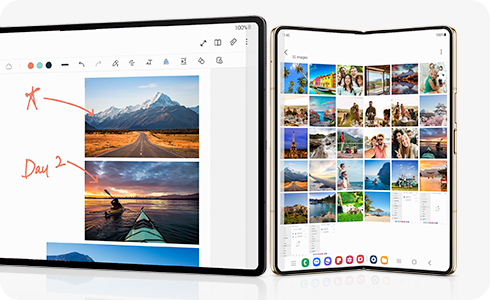
The Multi control feature allows you to connect your Galaxy tablet to your Galaxy phone when multitasking. You can navigate and control both your phone and tablet using a Bluetooth mouse and keyboard, as well as seamlessly transfer data and images between the devices.
Note: Some functions may not be available when using certain device models and apps.
Multi control requirements
Please review the following requirements before using Multi control with your Galaxy devices:
- Multi control is only available on Galaxy tablets (One UI 5.1 and above), and Galaxy phones (One UI 5.1 and above).
- The Multi control setting must be enabled on both devices. Although this is turned on by default when logging into your Samsung account, you can check it by navigating to Settings > Connected devices > Multi control.
- Bluetooth must be enabled on both devices.
- Both devices must be logged into the same Samsung account and connected to the same Wi-Fi network. (5Ghz Wi-Fi recommended.)
- A Bluetooth keyboard or mouse must be connected to the tablet.
Set up and use Multi control
Multi control allows you to use a Bluetooth keyboard and mouse to navigate your Galaxy phone and Galaxy tablet. You can open apps, type messages, send emails and prepare documents as if you were using a PC, or even drag and drop videos, photos and other files from one device to the other. Make sure a Bluetooth keyboard or mouse is connected to your Galaxy tablet before starting.


Step 1. On your tablet, go to Settings > Connected devices > Multi control.
Note: If the feature is not already turned on by default, tap the switch to turn it on.


Step 2. Tap Connect phone.


Step 3. Select your phone in the Nearby phones list.


Step 4. Your phone and tablet will be connected. Tap Phone location to change the display arrangement.


Step 5. Select arrangement option.


Step 6. Now you can use a Bluetooth mouse and keyboard to copy and paste text as well as drag and drop images from one device to another.
If the above information does not match what your product is showing, you may check the User Manual for your product. If you are unable to solve the problem, please contact us for further assistance.
Thank you for your feedback!
Please answer all questions.
RC01_Static Content : This text is only displayed on the editor page